
Choosing the right stylus pen for iPad can significantly improve how you write, draw, and interact with your device. Whether you’re a student taking notes, a designer creating digital artwork, or a professional managing documents, the right stylus enhances precision, comfort, and productivity.
This detailed guide explains everything you need to know about selecting the best stylus pen for iPad, including types, features, comparisons, compatibility, and real-world use cases.
Table of Contents
What is a Stylus Pen for iPad?
A stylus pen for iPad is a digital tool designed to replicate the natural feel of writing or drawing on paper while using a touchscreen. Unlike using your finger, a stylus offers better control, accuracy, and functionality.
Modern stylus pens go beyond simple touch input. They provide advanced capabilities such as pressure sensitivity for dynamic line thickness, palm rejection for natural hand placement, and tilt recognition for shading effects. These features are especially valuable for creatives and professionals who rely on precision.
At the top of the market is Apple’s official stylus, but third-party options have evolved significantly, offering competitive performance at more affordable prices.
Types of Stylus Pens for iPad
Apple Pencil (Official Stylus)
Apple’s own stylus lineup is widely regarded as the gold standard. Devices like the Apple Pencil Pro and Apple Pencil (2nd Generation) deliver exceptional responsiveness and near-zero latency. They integrate seamlessly with iPadOS, making them ideal for users who want a premium, flawless experience.
The Apple Pencil is particularly strong in areas like pressure sensitivity and tilt support, which makes it the preferred choice for artists and designers. Its magnetic attachment and wireless charging features also add convenience.
However, one limitation is compatibility. Not every Apple Pencil works with every iPad model, which makes it important to check device support before purchasing.
Third-Party Stylus Pens
Third-party stylus pens have become increasingly popular due to their affordability and versatility. Brands like Logitech, Adonit, and Jamjake offer styluses that perform well for everyday tasks such as note-taking and casual drawing.
While these alternatives often lack advanced features like pressure sensitivity, they still provide a smooth and reliable writing experience. Many also include palm rejection and decent battery life, making them practical for students and general users.
For those who don’t need professional-level precision, third-party styluses can deliver excellent value.
Best Stylus Pen for iPad
Best Overall Stylus Pen for iPad
The Apple Pencil (2nd Generation) continues to stand out as the best all-around stylus. It offers unmatched precision, fast response time, and seamless pairing with compatible iPads. Its magnetic charging and ergonomic design make it convenient for daily use across multiple tasks.
Best Budget Stylus Pen for iPad
For users looking for a more affordable option, stylus pens like the Jamjake Stylus provide a surprisingly smooth experience. They are well-suited for note-taking, basic drawing, and general navigation without the higher cost of premium models.
Best Stylus for Drawing and Creative Work
For artists, the Apple Pencil Pro delivers advanced features that elevate digital art. With enhanced pressure sensitivity and tilt functionality, it allows for detailed illustrations, shading, and brush control that closely mimic traditional tools.
Best Stylus for Note-Taking
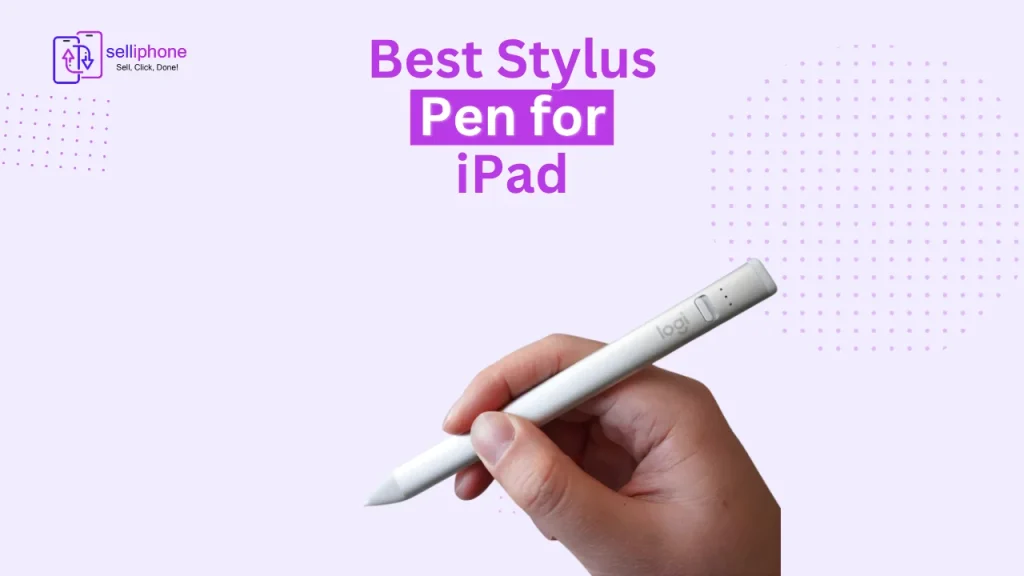
Students and professionals often prefer the Logitech Crayon due to its simplicity and reliability. It offers a comfortable grip and consistent performance, making it ideal for long writing sessions without unnecessary complexity.
Best Apple Pencil Alternative
Styluses like the Adonit Note+ strike a balance between price and functionality. They provide good accuracy and useful features while remaining more accessible than Apple’s official stylus.
Apple Pencil vs Other Stylus Pens
Performance and Precision
Apple Pencil delivers superior precision and responsiveness, making it the best choice for tasks that require accuracy. Third-party styluses, while slightly less precise, still perform well for everyday use.
Features and Functionality
Advanced features such as pressure sensitivity and tilt recognition are typically exclusive to Apple Pencil. Most third-party options focus on essential functionality, which is sufficient for writing and basic drawing.
Pricing and Value
Apple Pencil comes at a premium price, reflecting its performance and integration. Third-party styluses are more budget-friendly and offer good value for users who don’t need advanced features.
Compatibility
Compatibility is a key difference. Apple Pencil models are limited to specific iPads, while many third-party styluses support a broader range of devices.
Key Features to Look for in a Stylus Pen for iPad
Pressure Sensitivity
Pressure sensitivity determines how the stylus responds to varying levels of force. This feature is essential for artists who want to create lines with different thicknesses and effects.
Palm Rejection
Palm rejection allows you to rest your hand on the screen naturally while writing or drawing. Without it, accidental touches can interfere with your work.
Tilt Support
Tilt functionality is useful for shading and adding depth to drawings. It enhances the creative experience by mimicking traditional art techniques.
Battery Life and Charging
A stylus with long battery life ensures uninterrupted usage. Some models offer fast charging or magnetic charging, which adds convenience.
Compatibility with iPad Models
Not all styluses work with every iPad. Ensuring compatibility with your specific model is crucial before making a purchase.
How to Choose the Best Stylus Pen for iPad
Choosing for Students
Students typically need a stylus for note-taking, annotations, and studying. A budget-friendly stylus with reliable performance and palm rejection is usually sufficient.
Choosing for Artists and Designers
Creative professionals should prioritize features like pressure sensitivity, tilt support, and precision. Apple Pencil is the best option in this category due to its advanced capabilities.
Choosing for Business and Productivity
For professional use, such as signing documents or editing PDFs, a stylus that offers smooth writing and ease of use is ideal. Simplicity and reliability matter more than advanced artistic features in this case.
Which Stylus Works with Your iPad?
Compatibility is one of the most important factors when selecting a stylus pen for iPad. Different iPad models support different stylus versions.
iPad Pro models generally work best with newer Apple Pencil versions, offering full feature support. iPad Air models also support modern styluses but may vary depending on the generation. The iPad Mini and standard iPad models have more limited compatibility, often supporting earlier Apple Pencil versions or USB-C variants.
Third-party styluses tend to support a wider range of iPads, but they may not offer full feature compatibility across all devices.
How to Use a Stylus Pen with iPad
Connecting Your Stylus
Connecting a stylus to an iPad is usually simple. Apple Pencil pairs via Bluetooth and attaches magnetically to compatible devices. Most third-party styluses use a one-button activation system and do not require complex setup.
Best Apps for Stylus Usage
Stylus pens become more powerful when paired with the right apps. Built-in apps like Notes are perfect for quick writing and annotations. Creative tools like Procreate allow artists to take full advantage of pressure sensitivity and tilt features. Productivity apps such as GoodNotes are widely used for structured note-taking and document management.
Pros and Cons of Using a Stylus Pen for iPad
Advantages of Using a Stylus
A stylus improves precision, making it easier to write, draw, and navigate. It enhances productivity and allows for more natural interaction with the device, especially for tasks that require detail.
Limitations to Consider
Styluses can be expensive, especially premium models like Apple Pencil. Compatibility issues can also arise if the stylus does not support your iPad model. Additionally, new users may need some time to adjust to using a stylus effectively.
Common Problems and How to Fix Them
Stylus Not Connecting
Connection issues can often be resolved by restarting Bluetooth or re-pairing the stylus with the iPad.
Palm Rejection Not Working Properly
If palm rejection is not functioning as expected, it may be due to app limitations rather than the stylus itself. Switching to a compatible app usually resolves the issue.
Lag or Delay While Writing
Lag can occur due to low battery or outdated software. Charging the stylus and updating the iPad system often improves performance.
Final Verdict: Which Stylus Pen Should You Choose?
The best stylus pen for iPad ultimately depends on how you plan to use it. If you need top-tier performance for drawing or professional work, Apple Pencil is the clear winner. For students or casual users, third-party styluses offer a more affordable and practical solution.
Understanding your needs, checking compatibility, and comparing features will help you choose the right stylus that enhances your iPad experience without overspending.
Frequently Asked Questions
What is the best stylus pen for iPad?
The Apple Pencil (2nd Generation) is widely considered the best due to its precision and advanced features, though budget alternatives are suitable for basic use.
Is Apple Pencil worth buying?
For professionals and creatives, Apple Pencil is worth the investment because of its performance and reliability.
Can I use a cheap stylus on iPad?
Yes, but cheaper styluses may lack features like pressure sensitivity and advanced functionality.
Which stylus is best for note-taking?
Styluses like the Logitech Crayon are excellent for note-taking due to their simplicity and comfort.
Do all stylus pens work on iPad?
No, compatibility varies depending on the iPad model and stylus type, so it’s important to verify before purchasing.